

Two weeks ago, I set out to build a privacy-first AI system. But before any of the interesting stuff could begin, I ran into the good old infrastructure question.
My 2016 MacBook Air
The machine I planned to use for this project was, in technical terms, cooked.
Not just slow — it was existentially compromised. It couldn’t run the latest macOS, which meant it couldn’t receive security updates, which meant I was planning to build a privacy-first AI system on a machine that was itself a security liability. The irony was not lost on me.
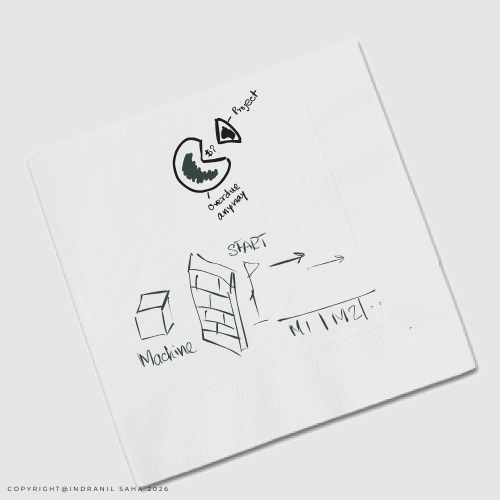
The laptop wasn’t really a project expense. It was a deferred necessity that the project finally forced me to confront. Any CFO will tell you when you’re allocating costs, be honest about what’s actually driving the spend. The project, in this case, gets only partial credit.
Buying only what you need
I did not want to buy a new Mac. Because I didn’t need one.
New MacBooks are extraordinary machines. They’re also priced for people who either expense them or derive some psychological satisfaction from unboxing theater. I am neither.
What I needed was a machine capable of running local LLMs — specifically something with Apple Silicon, at least 16GB of unified memory, and enough storage to not make me anxious. A refurbished MacBook Pro M3 checked every box at roughly half the price of new. Running a local language model has specific hardware requirements that rule out some machines. If you want to understand why 16GB of unified memory matters more than the chip generation, that's in the appendix.
The math wasn’t complicated. The harder part was trusting the process — because buying a refurb computer from a marketplace you’ve never used, for a machine you’ve never owned, based on specs you’re partly inferring, requires something most consumer decisions don’t: actual due diligence.
Due diligence
I’ve noticed this weird thing, people who would never skip steps on a business decision routinely buy technology the way they buy produce — by feel, and with no recourse plan. A $50,000 business decision gets a due diligence checklist, a legal review, and a week of scrutiny — as it should. But an $1000 laptop — which you will use for eight hours a day, every day, for the next four years — gets a glance and a gut feeling.
I did not do that.
I researched Back Market’s reliability track record, read refurb grading standards, developed (…as in, had AI do it) an inspection protocol covering battery health, hardware specs, physical condition, port functionality, and built-in diagnostics. And, I documented everything… photographically.
The actual thing took about forty minutes. The machine arrived. Battery cycle count: under 100. Specs: exactly as listed. Condition: better than “Fair” suggested. Result: a fully capable M3 MacBook Pro for the price of a mid-tier Windows machine.
Forty minutes on a decision that shapes every working hour for the next four (maybe, ten) years seems, on reflection, like the bare minimum.
The inspection checklist is in the appendix below — if you’re ever buying refurb mac, use it.
What this actually cost
The laptop was ~50% of new retail. It did cost me my time - roughly 4 hours of research and inspection. And, there’s obviously the opportunity cost of not starting the project for two weeks.
But I think the right way to think about this cost is that: a portion belongs to the project, a portion belongs to the long-overdue hardware refresh, and zero of it belongs to any illusion that this was optional. The 2016 machine was a security problem waiting to become another story. The project just forced the timeline.
Sometimes the infrastructure is the decision.
Next up
The machine was ordered. It hadn’t arrived yet…
Which left me with a week and nothing to do but think — about architecture, sequencing, and whether this project was actually as straightforward as I’d convinced myself it was. Well, waiting is underrated. The plan that came out is worth its own post. Until next time…
If you’re following along and want the full hardware inspection checklist — what to check, what thresholds to use, and when to return immediately — it’s in the appendix below.
Appendix 1: System requirements for running local LLMs on Mac
Why this machine, and not just any machine.
Buying a refurb Mac for general use is straightforward. Buying one to run local AI models requires a few additional considerations — because not all Apple Silicon is created equal for this purpose.
The minimum bar for this project:
Requirement Minimum: Chip - Apple Silicon (M1 or later) | M3; Unified Memory 8GB (constrained) | 16GB; Storage: 256GB (tight) | 1TB; macOS: Monterey 12+ | Latest
Why these numbers matter:
Unified memory is the critical variable. Unlike traditional laptops where CPU and GPU have separate memory pools, Apple Silicon shares one pool across both. Local LLMs load their model weights into this memory — a 7B parameter model (like Mistral 7B) requires roughly 4–8GB depending on quantization. At 8GB total, you’re running the model and your operating system in a constant negotiation for space. At 16GB, you have room to work.
Storage matters more than people expect. A single quantized model can run 4–8GB. If you plan to experiment with multiple models — which you will — 256GB fills up faster than feels reasonable.
The M3 specifically isn’t required — an M1 or M2 with 16GB would serve the project equally well, and would likely be cheaper on the refurb market. The M3 was available at the right price point. Don’t over-optimize for the latest chip generation.
What won’t work:
Intel Macs: Ollama technically runs, but performance is poor enough to be discouraging. Not recommended.
8GB unified memory: Possible for basic experimentation, but you’ll feel the ceiling quickly. Acceptable for testing the concept; limiting for sustained use.
Pre-Monterey macOS: Several dependencies won’t install cleanly.
The practical implication:
If you’re following this project and considering building something similar, the refurb market for M1/M2 MacBook Pros with 16GB is currently the best value entry point. You don’t need new. You don’t need M3. You need Apple Silicon and 16GB.
Appendix 2: Inspection checklist
(The nerdy part. Skip if you trust your instincts. Don’t trust your instincts.)
Before you do anything: Photograph everything on arrival. Box, accessories, all sides of the machine. Serial number. This is your evidence if anything goes sideways.
Battery: Apple menu → System Report → Power. Look for cycle count (under 100 is excellent, under 300 is acceptable), condition (”Normal”), and full charge capacity (85%+ of design capacity). Anything worse: negotiate or return.
Specs verification: Apple menu → About This Mac. Confirm chip, RAM, and storage match exactly what you paid for. Screenshot it. Discrepancy = grounds for return, full stop.
Physical inspection: Screen on and off (dead pixels, coating wear, bright spots), keyboard and trackpad feel, hinge smoothness, port integrity. Test every port with an actual device — don’t assume.
Diagnostics: Restart, hold Power until startup options appear, Command+D runs Apple’s built-in hardware test. “No issues found” is the only acceptable result. Optional: CoconutBattery for detailed battery analysis, Blackmagic Disk Speed Test to confirm SSD performance.
Return policy: Back Market offers 30-day returns and a 1-year warranty. Keep all packaging until you’re certain you’re keeping the machine. Document everything through their platform — not email, not phone.
Immediate return triggers: “Service Recommended” battery, mismatched specs, screen damage, non-functional ports, non-genuine parts warnings in macOS.
This is Part 2 of an ongoing series on building a private, local AI tax assistant — one hour a week, on consumer hardware, without sending your financial data anywhere.